It’s not 2015 anymore: now there are many different photo booth apps for iPad available. Some are inexpensive, others cost a lot. The list of features is huge, and it’s hard to compare apples-to-apples. Which photo booth app is best for you?

After this article was published we released a new photo booth app! We think it’s great, and it’s free for smaller events. Check out Booth.Events for iPad & iPhone.

There’s no simple answer. You are already on the path of researching different photo booth software options because your needs and budget are unique. We think our extensive feature list speaks for itself, but we often get asked “if we don’t use Wifibooth, what do you recommend?”. We want you to have an awesome photo booth setup no matter what, so we decided to tackle this question!

To keep the length of this article reasonable we chose to limit the discussion to iPad apps. But you could also consider the PC platform, with Darkroom and Breeze being popular options on PC.

Pro or DIY?

If you’re researching apps for your own wedding or just a one-off event then there are plenty of cheap DIY apps available on the App Store, like Pocketbooth. You should also consider that a few pro apps offer per-event pricing, which is a great way to get pro level quality at a DIY price! We found single event offers from Curator (pricing), PicPic Social (pricing), and Snappic (pricing). Also take a look at Darkroom Booth for iPad, which is usable at your event without paying to unlock the extra features and includes email.

If you want to earn money with your photo booth then you need to be looking at pro apps, because it doesn’t only matter if you are satisfied with the photo booth. It matters if your guests will be happy and excited. This article will focus on pro apps, which are tailored to thrill the broadest demographic your guests could encompass. We also assume that you want to run the booth as part (or all) of your business, rather than just a one/two-time thing you’re thinking about.

Money money money

Let’s focus on the cost of operating the app. All of the professional photo booth apps require a subscription (not a one-time purchase), so we’ll discuss the operating cost in price per month. The photo booth app market has three distinct price ranges that each app & plan falls into:
$20 – $50 per month, $60 – $100 per month, and $150+ per month.

We try to keep this page up to date, but prices and features can change at any time. If you notice an error, please let us know on the Wifibooth Community forums!

$20-$50 per month

In this range you can find the following options:

All of these apps take photos, GIFs, and boomerangs. But beyond that, these apps & plans have significant differences.

  • SMS & Email: Darkroom Booth for iPad and Salsa Plus include both; LumaBooth and Breeze have additional costs
  • Printing: Breeze Booth for iPad and LumaBooth include printing, Salsa Plus does not. Darkroom Booth for iPad does print, but using an iOS multi step pop-up experience that might be an issue for your guests
  • Cloud Storage: Darkroom Booth for iPad and Breeze Booth for iPad include Dropbox integration, Salsa Plus and LumaBooth do not
  • Green Screen: LumaBooth appears to be the only app here including Green Screen but we were unable to test it. Darkroom Booth for iPad does offer it, but we understood this offering to be at an additional cost.
  • Online galleries aka micro-sites: Salsa Plus includes basic online gallery functionality, LumaBooth and Darkroom appear to have additional costs
  • The design and appearance of these apps vary wildly. We think Salsa Plus is nicer to use, but that’s just our taste — yours will be different!

In this cheapest price bracket the main features that are missing are around social integration and post-event management (analytics, client features, etc). However, LumaBooth gets the win here for including sharing to social media in their offering!

$60-$100 per month

In this bracket your options include:

Stepping up to this price point means that all offerings additionally include printing, SMS, email, and an online gallery. Noteworthy differences include:

  • Data capture: You get access to the email addresses & phone numbers your guests enter (“data capture”) if you’re using Salsa Pro or PicPic Social Growth. We’re not sure about the others, and we think you’ll need this functionality sooner than later… it seems weird to us that you’d pay for an app but not have access to information your guests enter.
  • Animated overlay options: Salsa Pro and Simple Booth Lite include them, SnapPic Pro does not. If you think your guests will mostly be taking or printing photos then you don’t really need this feature.
  • Restrictions on number of events per month: PicPic Social Starter and Growth have restrictions, the others do not. We think it’s weird that you might only be allowed to use an app that you’re paying for per month, but PicPic Social has considerable strengths to consider.
  • Social: PicPic Social and SnapPic Pro have better social features
  • Cloud storage: Salsa Pro includes a Dropbox integration, none of the others do

$150+ per month

In this bracket your options include:

At this top price point the options have more differences than similarities. Here are a few noteworthy ones:

  • Social: PicPic Social and Simple Booth have more social sharing features (Facebook, Twitter, Instagram)
  • Client-facing features: Simple Booth and SnapPic have more client-facing features that matter after the event, such as a client portal & reports for clients
  • Account representative: Curator and Simple Booth include one, which might be important if you get stuck or have custom hardware or software integration requirements
  • Surveys: Curator and SnapPic offer them, which you can use to collect important information from your guests during the event
  • PicPic Social does not appear to offer any cloud storage options like Dropbox

Phew, what else?

It’s worth noting that a feature checklist on one website is hard to compare to a checklist on another website. For example, when one app says “Green Screen” they might mean that you need to lug around a green-colored backdrop and put this up to get the green screen effect. This is called chromakey, an old technology you might be familiar with from the weather channel. Other apps might write “Green Screen” to refer to newer technology that doesn’t require any background at all to achieve the same effect. Some might require specific hardware, such as an iPad with a TrueDepth camera (such as any iPad with Face ID).  Think about what you need to carry around, how it packs up, and how hard it is to set up.

You should also think about what the best photo booth app for you should do, regardless of what’s available. Try thinking about this while you’re not looking at your screen! Got some ideas? We’ll help you: none of the options discussed on this page offer integration with Google Drive or Google Photos, and none of them can connect to a remote iPhone to use its rear camera for superior image quality. We also don’t see any options on this list that can connect to your Canon, Sony, Nikon, Panasonic, Olympus, or Fuji DSLR / camera.

The best photo booth app has the best support

Photo booths do a zillion things, which means eventually something will not work the way you want it to. When that happens you will need support. Different apps provide different support options. Every app offers some form of online support, but not all of them respond within the crucial few hours between now and your event taking place later this evening. Make sure you work out what support you are entitled to before you make a purchase, and check that it works the way it is advertised.

Are you going to grow?

If you end up growing to the point where you have multiple photo booths all operating at events simultaneously, then you need to be aware of how your app’s plan will work. For example if you are paying $99/month, can you run two events at the same time, or do you need to buy another license for the second iPad?

For most of the apps and plans mentioned you only get one device per license, but additional device licenses are cheaper than the first. Darkroom Booth for iPad is the clear winner here, allowing up to 10 devices to be in use at once on a single license. LumaBooth allows 2, and the Curator Agency Pro plan offers 2 (but is considerably more expensive). PicPic Social is different: since this app limits the number of events per month, it does not limit the number of devices per license.

Don’t focus only on the cost

A photo booth app that has all of the features but is hard to use or looks aesthetically displeasing will not give your business the professional appearance you want. You need to get to know your event guests: at some events, anything that works will do. Other types of events or groups of people can be much more discerning, and would be discouraged by ugly software or booth hardware. You need to know what you are targeting and buy your photo booth app accordingly.

Don’t rush the decision

Once your photo booth business gets going you are going to have zero time to reconsider this decision. You’re going to be incredibly busy, in a good way! But you won’t want to make this decision again. Take your time to think about the features you need. You need to plan how many events per month you expect, so that you can work out what your budget for the app is.

Try before you buy

This might seem obvious but you’d be surprised how many people pay a lot of money for a photo booth app they have never tried before. All of the apps here let you try them without paying, although some make you enter payment information and an “unless you cancel” commitment in order to start. Shop around! Don’t buy the first one you try. Try a few different apps because each has its own strengths and weaknesses.

Wrapping up

Here’s a list of features we think are important to think about. You do not need all of them and this list doesn’t cover all the features that are out there, but sometimes just having a list is helpful.

  • MP4s/GIFs/Boomerangs
  • White label (skin, logo)
  • SMS
  • Email
  • Data capture (emails, #s)
  • Online gallery, Micro-site
  • Offline Queue
  • Printing
  • Regular overlays
  • Animated Overlays
  • Green Screen
  • Custom URL (for galleries etc)
  • Digital props (AR)
  • Event syncing (cloud management of events)
  • GDPR / Disclaimer
  • Instagram upload
  • Instagram download
  • Facebook upload
  • Dropbox
  • Google Photos / Drive
  • Post-event email to guests
  • Analytics
  • Reports for clients
  • Client portal
  • Surveys
  • Account Rep

If you’re looking for more information on how to setup the perfect photo booth then please check out our other articles.

Did you know we have extensive videos and help articles to get you started with your photo booth as quickly as possible? We respond within hours on the Wifibooth Community, and we love hearing about what you’re building & dreaming about!

This article is for informational purposes only. Only information publicly available on the internet was used to compile the information in this article. We make no guarantees of any information or prices contained in this article – you need to check before you purchase.

Tim Carr

Try Wifibooth for free!

Get it now

Photo booths are a fantastic way to earn more revenue at every event, increase your brand exposure, and make your guests happy. So what’s the best way of setting up a photo booth and your photo booth app?

After this article was published we released a new photo booth app! We think it’s great, and it’s free for smaller events. Check out Booth.Events for iPad & iPhone.

Lighting is Everything

It doesn’t matter if you have the best software and the best camera, you can still end up with terrible photos if your lighting isn’t great.

To start, decide if you will have:

  • Constant lighting, like an LED light panel, or,
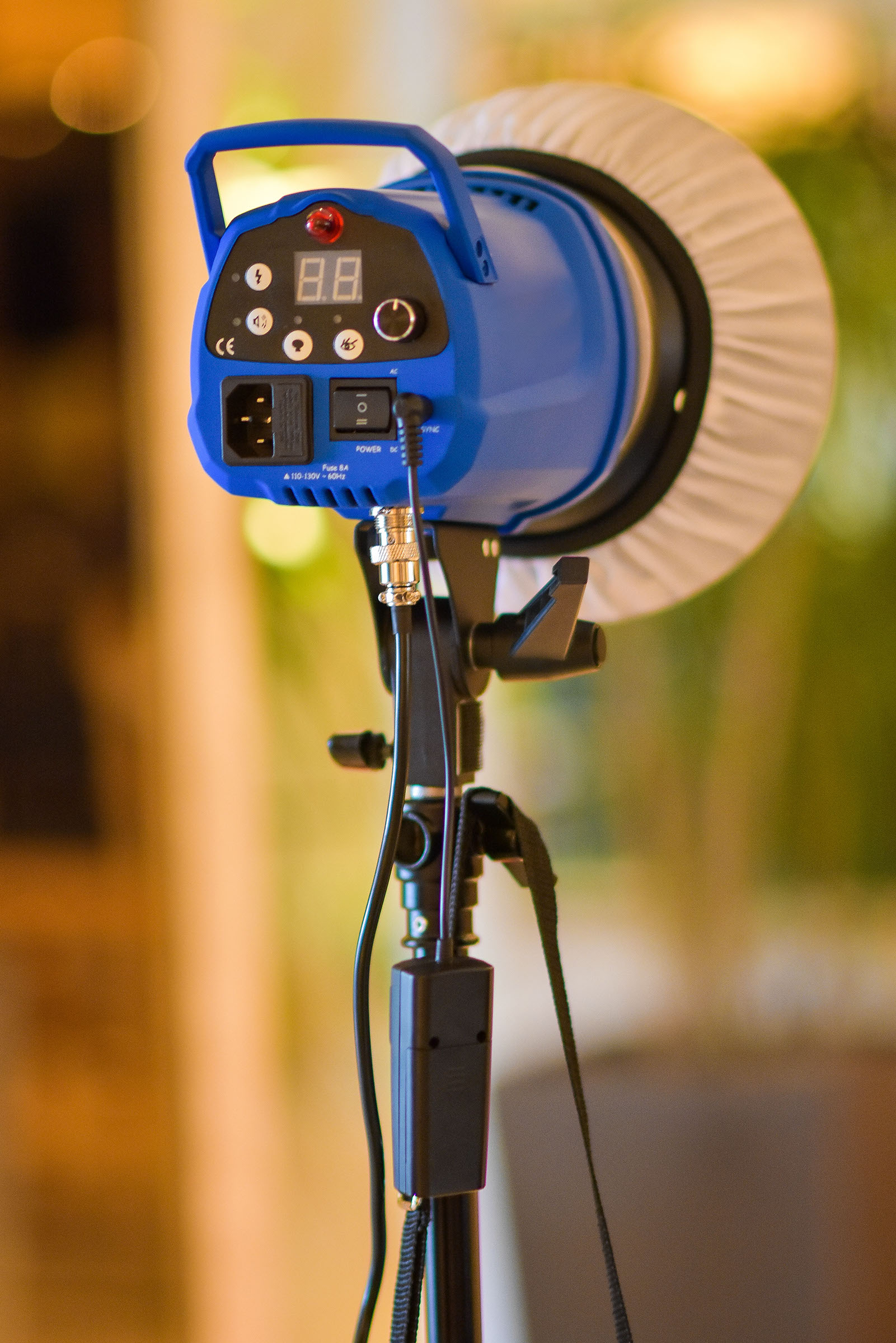
  • Strobe / flash lighting, like a flash as shown in the photo above

If you bought a photo booth setup from a company like Photo Booth International, LA Photo Party, or Atlanta Photo Booth, then it likely came with the lighting included. Use what you have!

Constant lighting is the easiest because because the light is always on. This means you don’t have to synchronize the lights to the camera. You need to use constant lighting if you’re using the iPad camera to take the photos. You also need to use constant lighting when your connected camera is showing the live-view and is unable to expose the live-view differently than the photos. In general a Canon xxxD (like the 750D) has this issue but a Canon xxD (like the 80D) does not. This means that if you want live-view then the Canon 80D could use strobe/flash but the 750D cannot.

Strobe / flash lighting (as seen in the photo above) produces a more studio-like effect, with strong contrast and the ability to “freeze” motion. This is great for when your guests decide to jump or move quickly. To use strobe lighting you need to sync the flash with the camera that you’re using, just like you would do when you take photos with the flash. Your photo booth software needs to support connecting to your camera for this to be possible.

Where you position the light is important

If you’re using constant lighting then you probably need most or all of the light directly facing the guests. You should try placing a second light at 45 degrees to increase contrast. This means that the light is hitting the guests from the side. This will bring out the details because it will create minor shadows on the face. Play with it! A small change in the position of your lighting can have a big effect on the way your guests see the photos.

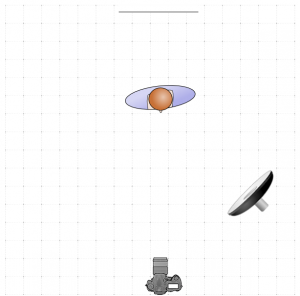
A setup with one light that’s 45 degrees from the camera

The same goes for strobe/flash lighting: consider having the main light about 30 to 45 degrees away from the camera, hitting the guests on an angle. In the photo above that’s what was used – about 40 degrees to the left (from the camera’s perspective).

Which iPad should you buy?

Yes, that super old iPad that your kids have beat up might still work, but it isn’t going to give the professional appearance you want for your business. The best reason to buy a newer iPad is that the quality of the front-facing cameras has improved greatly over time. Also, the introduction of the TrueDepth camera has allowed booth software to do awesome things with computational photography. For that reason we highly recommend the iPad Pro line with FaceID, because these are the only iPads that have the TrueDepth camera. At the time of writing the two size options are 11″ and 12.9″, and both are great!

Which App should you buy?

Obviously we’re biased, but we want you to be aware of all of the alternatives. Check out this article we wrote discussing all of the different aspects of the available photo booth apps and plans.

Camera orientation: landscape or portrait?

If you’re going to crop the photos to square then you don’t care – skip this section. Otherwise, you need to decide if the camera is going to be portrait orientation (up/down), or landscape (left/right). There’s no right answer, it depends on the event. If you’re going to have large groups taking photos, meaning each group is likely to have more than 5 people, then you should use landscape (left/right) to make sure everyone fits in the photo. Otherwise use portrait (up/down), so that you can get the full body of the guests in the photo. People care about their shoes, especially at weddings!

Green Screen

Green screen means that the photo booth software will change the background behind the guests. The older method of green screen is chromakey, which requires a green-colored backdrop behind the guests. The newer method uses computational photography to replace the background without any colored backdrop at all. It’s far easier to use because you don’t have to buy or carry around green-colored backdrops. The photo booth app for iPad Wifibooth supports this newer method with its SceneSelect feature. SceneSelect even allows guests to pick a photo for the background when they take their pictures.

Booth placement

Where should you put the booth? If you’re using strobe/flash lighting, then some guests might be annoyed if where they are sitting for most of the event is constantly bombarded by flashes. In this case consider moving the booth further away from where guests are seated. Otherwise, you don’t want the booth to be too far away: out of sight is out of mind. Your booth will only be successful if people actually find it and use it! Putting the photo booth in its own room (away from the guests) is a bad idea: it won’t get used. Try and put the booth somewhere where the guests already need to be, ie. on the way to the room/area where dessert is served.

Ideally you should have a space at least 2 meters (6 feet) wide and 3 meters (9 feet) deep for your photo booth. This gives guests the space to walk around the booth. You also need to think about kids running around and drunk guests rushing to the booth. More space means your guests are less likely to bump into your equipment and knock something over. If you have props on a table you need to make sure you have a space that’s big enough. Make sure the guests can easily grab the props between shots. A table just on the side of the booth is one way to do this.

Buy some props

Real booth props are an easy and cheap way to ratchet up your guests’ excitement in the booth! Digital props are cool, but a lot of guests will get a kick out of a good old moustache on a stick. You can buy these props in many places including cheap options from Amazon, Etsy, and Ebay. The trick is to order a few sets from different sellers, and find one that you think is good quality for the cost. You’ll be re-ordering them from time to time, because props don’t last forever: they get stolen and broken. It helps to have a reliable seller you can re-order from quickly!

Get a printer

In today’s digital world you might not think printing is necessary, but prints from your booth are your best way of being remembered. Prints are the most important brand exposure you’ll get from the event. These prints will get put on refrigerator doors, pinned on boards, stuck on walls, etc. That’s your logo and your brand in someone’s home, with a strong associated positive memory (ie. “that was a fun wedding!”). This directly translates to more callbacks and more revenue! It’s important to spend the money and get a great printer for your photo booth.

Make sure your photo booth software supports printing because not all of them do. The iPad photo booth app Wifibooth can print to any AirPrint printer or server, and also to DNP WPS products.

If your booth setup came with a printer then you are set. Otherwise, there are basically two options:

  • Cheap & small printers, like the Canon Selphy series
  • Dye-sublimation (aka dye sub) printers, like those made by DNP, HiTi,
    and Mitsubishi

Get a dye sub printer

Unless your budget cannot stretch, getting a dye sub printer is definitely the option to choose. The primary reasons to get a dye sub printer are:

  • Speed, because dye sub printers are much faster than regular printers
  • Paper capacity, because you don’t have time to constantly be refilling empty paper trays
  • Professional quality prints that don’t smudge or smear if guests have sweaty hands when they pick them up

An excellent printer to consider is the new DNP QW410, which is affordable, small, lighter than most dye sub printers,  supports strip photo printing & cutting, and can optionally be battery powered. You’ll need to buy the optional wireless dongle so that your iPad can print to it.

You need to choose whether your booth prints single large photos (ie. 4×6″), or traditional “strip” photos (a series of 3 photos in a photo strip). If you’re opting for the strip photos then you need to make sure your printer supports cutting the paper for the strips. You don’t want to leave this as an exercise for your guests: scissors and alcohol are not a good combination.

For reviews on dye sublimation printers, check out this article on Lifewire or this article on prizedreviews.

Think about how your guests will get digital copies of their photos

There are a lot of ways for your guests to get their photos. You need to make sure that your business & brand are benefitting from the additional exposure. Obvious options include making sure your photo booth software is configured to send E-mail and SMS (texts). You’ll be collecting e-mail addresses which you can use to market to later on (assuming that you collected the required consent from your guests to contact them). You should also consider using cloud storage options such as Dropbox, because this will be great for the guests who want to see all of the photos (not just their own).

We suggest setting the photo booth app to upload your photos to Dropbox, and then configuring the emails sent from the app to include the link to the Dropbox album. That way guests can get the link to the entire album, which means they do not have to enter their email address more than once. It also lets them see the whole set of photos which is often more exciting than just seeing a single photo.

If you configure any social network sharing, then make sure your guests are informed and consent to their photos being posted. Remember, these photos are publicly accessible. If there’s going to be alcohol involved then consider turning off any integration that posts the photos publicly. You can always review them later and post them manually. This prevents embarrassing photos getting posted which could be a huge headache for you later.

If you’re looking for more information on how to setup the perfect photo booth, or if you want to compare different photo booth software to figure out which is the best for you, then please check out our other articles.

Did you know we have extensive videos and help articles to get you started with your photo booth as quickly as possible? We respond within hours on the Wifibooth Community, and we love hearing about what you’re building & dreaming about!

Tim Carr

Try Wifibooth for free!

Get it now

You’ve worked hard. You’re booked almost every weekend. You’ve raised your prices several times. How do you continue to grow your revenue as a growing professional photographer?

There are only so many Saturdays in a year, and your partner has pointed out that you need to spend non-zero time with them.

There are a couple of popular options:

  • Niche: Become a top talent in a particular photographic niche in your area
  • Agency: Hire assistants, grow them into photographers, incorporate
  • Attached services: Add additional services to your offerings so that you earn more at every event

The first two are difficult. It takes a lot of time and effort to figure out what your local market is missing and then to become a top talent in it. Hiring anyone has a certain amount of risk that you might have good reasons not to take on.

Attaching services will leverage the client relationships you already have

So how do you attach services to your photography business and make more money?

It comes down to what you’re good at. If you’re into music or you find yourself putting together playlists that others like, then offering lightweight DJ services could be a great fit for you. If you’re naturally well-organized, a touch trendy, and know how to be firm when you need to be, then offering event planning services alongside your photography services is an option.

The easiest service for any photographer to add is a photo booth. Photo booths can cost the event host upwards of $1000+ to rent for an evening. If that $1000 is paid to you and you’re shooting 26 Saturdays this year, that’s $26k of additional revenue.

Why would the event host hire you and not a specialized photo booth company?

Here’s why: when you’re shooting a wedding, a party, or any other event, the person hosting the event has already taken the risk of hiring you. What if you get sick, or don’t show up for some reason? They’ve already decided that you’re trustworthy. If the host needs to find another company and hire someone else to provide a photo booth, then they have to take that risk again. That’s why leveraging your existing client relationships to add services will work so well: having you provide the booth means one less person/company the host has to worry about.

Leveraging the value of the relationships you already have with your clients gives you a huge advantage over your competitors for offering additional services.

Be seen, be known

Another huge reason for photographers to offer a photo booth is the brand exposure. Your guests will see you at the event, but will they think of you afterwards? The best way for a guest to remember you is when they look at the printed photo-strip on their refrigerator door. They’ll have a happy memory, and then see your logo right at the bottom of the photo-strip. The best brand exposure is having your product inside people’s homes, associated with a strong positive memory! You will get more callbacks because more people will remember that you were good, and also remember your name too.

If your brand is associated with positive memories and constantly seen, you will get more leads and increase your revenue.

Don’t do it alone

You don’t have to do everything yourself. You don’t have to spend your time at the event fussing over the photo booth — indeed, you shouldn’t. Your top skills are about taking great photos of the moment, so you need to be free to do that. That’s why most photographers hire an assistant or student to handle setup & teardown of the photobooth. You should be able to easily find a minimum-wage student. Students are happy to have a simple paid gig, but also to be able to learn from you. Even if you do pay someone, you’re still going to make a large profit on the photo booth at every single event.

Photo booths pay for themselves within two events. They often earn you profit during the first event itself!

It’s easier than you think to start

You already have the knowledge you need because you already know how cameras & lighting work. If you are staying at the event until the end, or you have an assistant who stays after you leave, then you’ve already got the person-power. The software that runs a photo booth has improved a lot in the last few years, so you no longer need to be a tech expert. No computer required, no software know-how. It’s now super easy to setup your photo booth & for the guests to use it. Wifibooth runs on any iPad and is free to try including all features. This means you can try it on any iPad without a commitment.

You probably already have most of the equipment you need. That older DSLR you’re keeping around as a spare body will work with Wifibooth if it has wifi. If you have a newer iPad then the front camera will be fine for a photo booth if you provide decent lighting. Using the front camera of an iPad with FaceID means you get the benefit of computational photography, because the app can use both the regular camera and the depth camera (TrueDepth) to create amazing effects.


Photo credit: James @ thislovestudio.com

If you’re looking for more information on how to setup the perfect photo booth, or if you want to compare different photo booth software to figure out which is the best for you, then please check out our other articles.

Did you know we have extensive videos and help articles to get you started with your photo booth as quickly as possible? We respond within hours on the Wifibooth Community, and we love hearing about what you’re building & dreaming about!

Tim Carr

Try Wifibooth for free!

Get it now

If you’ve updated to iOS 13 and you experience the problem that the first print works, but then the printer stops working – no subsequent prints are actually printed, even though Wifibooth shows the prints were successful, keep reading.

This could be an iOS 13 issue that you can work around by taking the following step:

Change the name of your printer so that it does not have any symbols in it

For example, the following are names that can cause issues on iOS 13:

  • 36″ Roll Printer
  • Tim’s Printer
  • Canon MFC/32F

The following characters are confirmed as ok on iOS 13.1.1: spaces, hyphens, and underscores. For example, the following are names that do not have issues on iOS 13:

  • 36 Roll Printer
  • Tims_Printer
  • Canon MFC-32F

Tim Carr

Try Wifibooth for free!

Get it now

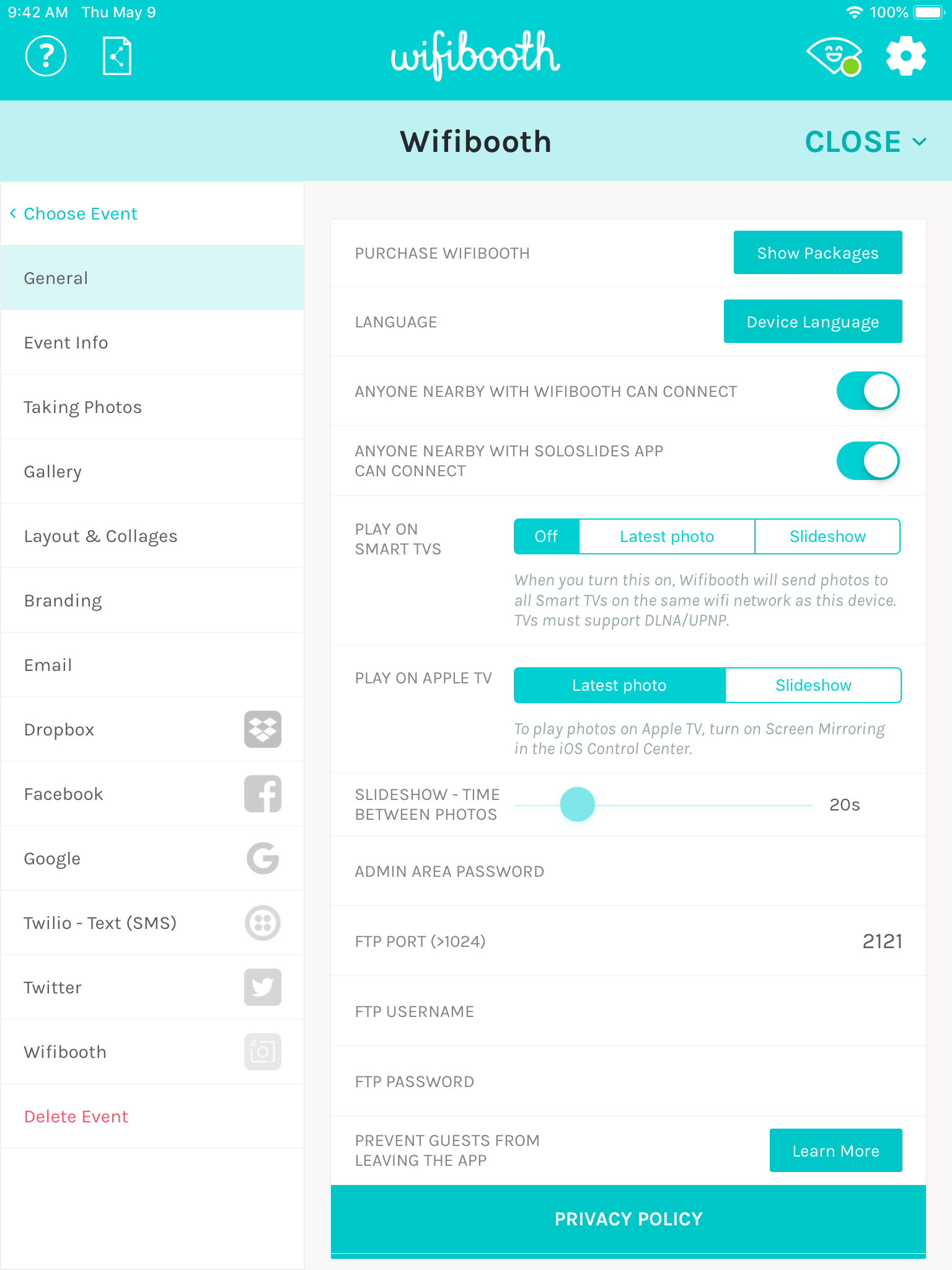
If you open up Event Settings in Wifibooth and go to the General page, you’ll see the following settings:

  • Purchase Wifibooth – see the in-app purchase options
  • Language – set the language of the app to something different than the device
  • Connectivity – settings to control who can connect to Wifibooth on your iOS device remotely
  • Slideshow settings
  • Admin area password
  • FTP Server settings
  • Privacy policy and Terms of use

Purchase Wifibooth

Use this button to access the purchase screen, where you can see available packages and packages you have already purchased, or restore a package you purchased on a new device. There’s a lot more information in the In-App Purchase article.

Language

Did you know that Wifibooth can run in a language different than the device’s language? Choose one of the available languages, then restart the app for this change to take effect. This is a lot easier than changing the language of your device if you’re hosting events in regions that don’t share your native language.

Connectivity

By default, anyone who has an iOS device that is connected to the same wifi network as you, or is physically close enough to your device with Bluetooth turned on, can use either the Wifibooth app or the Soloslides app to connect to Wifibooth. You must select an event before they can connect.

If they use Wifibooth, they can drive the photo-taking experience (the same as if they touched the trigger button in Wifibooth), and retrieve their photos.  If they use Soloslides, they can access the photos of the current event.

In either case they only have access to the photos of the currently selected event (ie. the photos in the album that matches the event name that is currently selected).

If you don’t want remote users to be able to connect in this fashion, use the settings to turn this functionality off.

Slideshows

Wifibooth can play slideshows in the following ways:

  • To a Smart TV
  • To an Apple TV (or any software or hardware that emulates an Apple TV, such as AirServer)
  • To another iPad (or other iOS device)

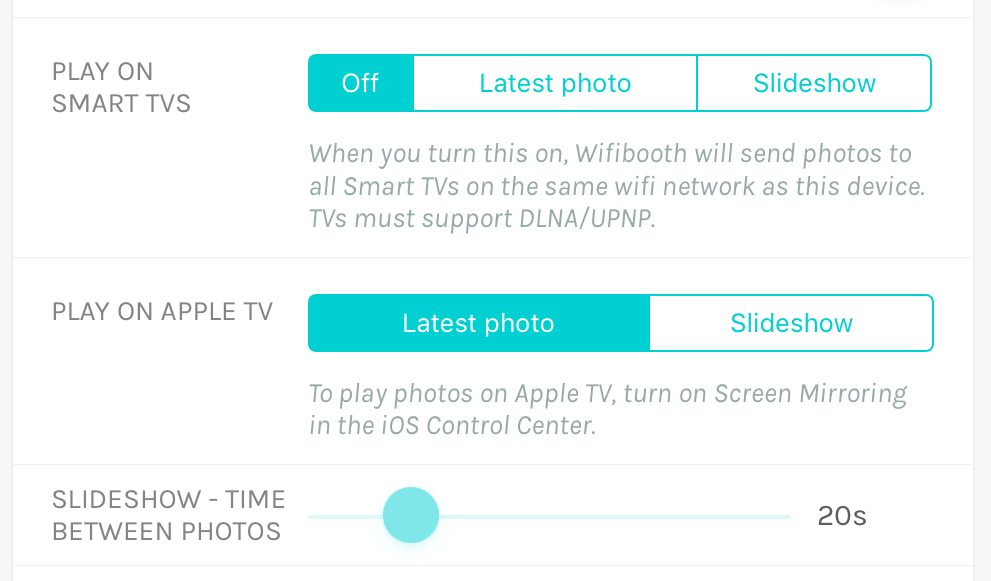
Wifibooth slideshow settings (General page)

Playing a slideshow on a Smart TV

Wifibooth supports pushing photos to all DLNA/UPNP-capable Smart TVs (this includes most modern Smart TVs). You do not need to install or run any app on the Smart TV (unless your TV manufacturer requires this for DLNA/UPNP JPG playback – unlikely). Wifibooth and the Smart TV must be on the same wifi network, and the network’s router must not be blocking UPNP traffic.

To play a slideshow to a Smart TV, turn on the setting Play on Smart TVs to one of the following options:

  • Latest photo – when Wifibooth downloads a photo from the camera, it will immediately display it on the Smart TV
  • Slideshow – Wifibooth will cycle through the photos of the event. You can control how long each photo lasts on the TV by using the slider (see image above)

Once you turn this setting on, Wifibooth starts looking for any DLNA/UPNP devices that are capable of displaying a JPG photo (ie. Smart TVs). You can see which devices have been found: after you turn this setting on, the text underneath the setting will change to show which devices are found.

Wifibooth automatically pushes images to all capable devices that it finds on the wifi network. This means that you can present on as many Smart TVs as you wish to. However, please be considerate if you’re using a public or vendor-provided wifi network that might have other Smart TVs on it that do not belong to you.

Some Smart TVs (like Samsung Smart TVs) may show a popup asking for permission to show the photos from Wifibooth. This should happen only the first time that Wifibooth shows content on the TV.

Playing a slideshow on an Apple TV, or to software/hardware that emulates an Apple TV

Wifibooth supports connecting to an Apple TV to show photos. You need to make sure that Wifibooth and the Apple TV are on the same wifi network.

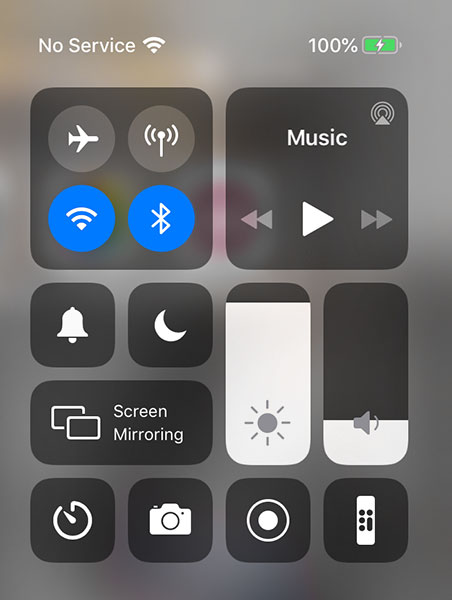
Once Wifibooth and your Apple TV are on the same wifi network, turn on Screen Mirroring from the iOS Control Center:

The iOS 12 Control Center, showing the Screen Mirroring button near the bottom-left

To open the Control Center, swipe down from above the screen onto the screen, at the top-right corner of the device. Note that you need to be near the right-hand side of the top, or you’ll get the Notification Center instead.

Once you have opened Control Center, touch Screen Mirroring. You should see your Apple TV in the list; if not, check that your iOS device and the Apple TV are on the same wifi network. Select your Apple TV and connect to it.

Back in Wifibooth, you can choose what kind of slideshow will play on your Apple TV:

  • Latest photo (default) – when Wifibooth downloads a photo from the camera, it will immediately display it on the Smart TV
  • Slideshow – Wifibooth will cycle through the photos of the event. You can control how long each photo lasts on the TV by using the slider (see image above)

Playing a slideshow on another iPad (or other iOS device)

To do this you’ll need the Soloslides app on your other iOS device. Soloslides will try to connect to Wifibooth using wifi, and if that doesn’t work (for example because your iPad’s wifi is connected directly to your camera), it will automatically fall back to connecting with Bluetooth.

As long as the setting “Anyone nearby with Soloslides app can connect” is turned on (default), and Bluetooth and wifi are turned on (you can check this in the iOS Control Center) there are no additional steps to take in Wifibooth.

Admin Area Password

You can prevent people from being able to open Event Settings, camera settings, and printer settings by entering a password here. To learn more, including how to prevent guests from leaving the app by touching the home button, please read this help article. Note: don’t forget your password! There is no way to reset it or retrieve it (you’d need to delete the app and reinstall it).

FTP Server settings

If you set an FTP port, username, and password, then Wifibooth will run an FTP server that you can upload JPG photos to. All JPG photos that you upload via FTP will be immediately added to the current event’s photos.

There are a few important considerations:

  • You must have selected an event for the FTP server to start
  • You may connect more than one FTP client at a time, but only a single client uploading a photo at a time is supported
  • After uploading a JPG photo, Wifibooth will process it (save it to the Camera Roll in the event album) and delete it from the FTP server. That means that you can only upload to Wifibooth via FTP; you cannot download photos from Wifibooth via FTP
  • For security reasons, the FTP port must be a number higher than 1024 (port 21 is not permitted)


Tim Carr

Try Wifibooth for free!

Get it now

Oops! You’re probably trying to sign-in to the Wifibooth Service by opening a link in the email you received. BUT, you need to open this email link on the iPad or iPhone where Wifibooth is installed. For more information please see How to send texts (SMS/MMS) with Wifibooth

If you are still seeing this page display after opening the link, then please force-quit Wifibooth on this device and start Wifibooth again.

Tim Carr

Try Wifibooth for free!

Get it now

Wifibooth can send texts (SMS or MMS) by using the Twilio service. To do this you need to complete these steps:

  1. On twilio.com: create a Twilio account (if you don’t have one already), assign it at least one phone number, and add your payment information. At less than a penny per text, Twilio is very affordable – think less than $5 for a big event.
  2. In Wifibooth: sign-in to the Wifibooth service
  3. In Wifibooth: enter your Twilio credentials and the phone number, and test to make sure it works

The Wifibooth service is used as a storage depot for the files (photos, GIFs etc) that guests text to themselves. This is necessary because Twilio only sends links, not the actual files themselves. When a guest enters their phone number to send a text, first the item is uploaded to the Wifibooth service. Then, the link to that file is sent using Twilio as a text. It is important to note that files are automatically deleted from the Wifibooth Service within 30 days – guests are expected to save the photos that they like. These links are public: anyone with the link can access the photo. The usage of this service is included in the Pro package, and governed by the Terms of Use and Privacy Policy.

OK let’s get started! You only need to do this once for all of your events.

1. Create a Twilio account

Open www.twilio.com and create an account. After you create an account, that account is a trial account until you add your payment information (such as a credit card). Please note that trial accounts cannot send text/SMS to real phone numbers, so add your payment information to get started. You might find you start with $5 of credit, so you don’t actually have to pay to test it out.

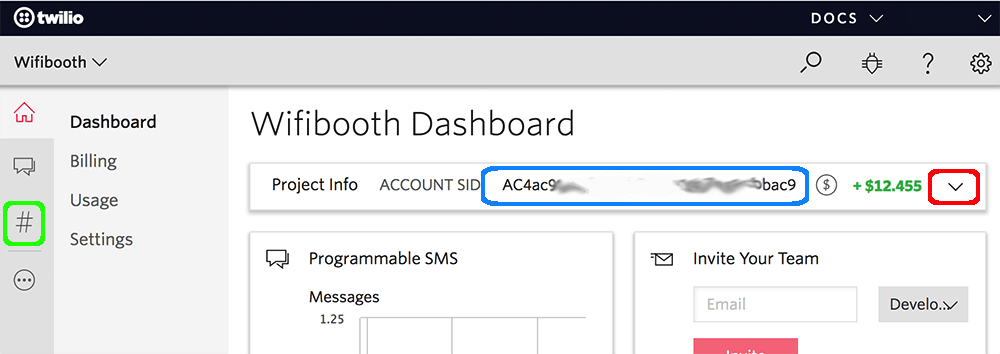
Once you’re logged in, go to the console and look for your Account SID, in the blue callout here:


Now, hit the dropdown button (red in the callout above) to expose your more project info. You’ll see that the Auth Token is hidden by default, so hit “View” to make it show up. Write down the Account SID and Auth Token, as you’ll need to enter them into Wifibooth shortly. Please note that Twilio 2FA is not currently supported by Wifibooth.

Next, go to the Phone Numbers page – use the green callout in the image above to get there. Use this page to add a phone number to your account. Make sure the number you choose is SMS capable. Write down the phone number you added.

2. Sign-in to the Wifibooth Service

In Wifibooth make sure you have direct internet access available and go to Event Settings -> Wifibooth. Hit the “Sign In” button at the top, and you’ll be prompted to enter an email address. Important: you must be able to receive the email on the same iPad that you’re on now. After you’ve entered and confirmed your email address, it will appear as nothing has happened: you need to go open that email on the same iPad and click the link. Once you click the link in the email, Wifibooth will re-open, and after a moment you’ll see that it becomes signed-in to the Wifibooth Service.

3. Configure Wifibooth Twilio Settings

In Wifibooth make sure you have direct internet access available and go to Event Settings -> Twilio. Enter the three pieces of information you wrote down: the account SID, the auth token, and the phone number. As you do this, at the bottom of the settings page you can see Wifibooth attempt to check the SID/token pair and make sure they’re correct. If you see red text, something’s gone wrong — double-check you entered the SID and token correctly.

To enable the feature, make sure you switch on “Allow Guests to send SMS”. You can also enable MMS, assuming the phone number you chose supports it. Note that sending MMS is more expensive than SMS – see Twilio’s website for pricing.

Don’t forget to test it out by using the “Try it” button! This will text a default photo to whatever phone number you choose.

Tim Carr

Try Wifibooth for free!

Get it now

This article is about connecting an external camera to your iPad/iPhone. You can also connect from your iPad to an iPhone, to use the iPhone’s camera – read more here.

Is your Camera Supported?

Please check the list of supported cameras to make sure the camera you are using is supported by Wifibooth.

Watch the video!

Use the Related Video link at the top-right of this article.

Optimal iPad Settings

Make sure your iPad is fully charged, and plugged in. When the battery is low, iOS can throttle the wifi, which causes disconnections, lags, poor live view performance, and all kinds of other issues. Even if the iPad is plugged in, a low battery can still cause all of these issues. Turn on wifi, and bluetooth also! Make sure low power mode is turned off (if your device supports it — most iPads do not), and check that you have lots of free storage space (>500MB).

When was the last time your iPad was turned all the way off? If you can’t remember, do it now: hold down the power button, swipe -> off, then turn it back on again. This is especially helpful if you experience connectivity issues (to the camera, or from remotes).

Is your iPad in a case? Take it out and see if it performs better! Cases have a negative impact on wifi. How much negative impact depends on the case, so experiment without it and see if you get better performance.

Optimal Camera Settings

Use a fast memory card, not your old crummy one! Wifibooth hammers your camera with requests as fast as it can handle, to prevent your event guests waiting for the camera. A slower memory card can cause your camera to get confused and drop requests, resulting in missed photos in the app.

Start with a formatted memory card for best results! Wifibooth will connect to your camera faster if there are just a few photos on the card (ie. format it, then take one photo).

Panasonic & Olympus camera users: you must take at least one photo after formatting the card, or, make sure there’s at least one photo already on the camera.

If you experience the camera continually connecting & disconnecting: try formatting the card, taking one photo manually (using the camera not the app), then connect to Wifibooth

Use manual focus if possible, especially on the Canon 1300D aka T6. Autofocus failures can lead to long delays (stuck on the pink circle / donut screen) and can make people think the app has crashed. If your camera has unreliable autofocus performance (Canon 1300D, low-end DSLRs like the Nikon D3000 series, certain mirrorless cameras), then autofocus should be avoided. You need to turn off autofocus in two places: on the camera (ie. set the lens or camera to MF), and in Wifibooth (in the event settings -> taking photos, turn off autofocus). The Canon 1300D will often fail to take any photo when there is just a hint of focus ambiguity, so for this camera autofocus should be turned off.

If you are using autofocus, choose a focus point on the camera where there is high contrast, such as where people’s faces will be, or where a bright area meets a dark area. If you’re testing wifibooth on your desk, make sure you point the camera at a real subject that’s a proper distance from the camera.

Super huge photos will crash your iPad, so use JPG ‘Small’ or ‘Medium’. Make sure your camera is set to store JPGs at a size as close to your printing resolution as possible, which is by default 1800 x 1200 pixels (6″ paper size width x 300DPI = 1800 pixels width). It is safe to set your camera to store both RAW+JPG – RAW files will not be downloaded. With RAW+JPG you still have the originals, and Wifibooth is able to process the JPGs quickly.

Getting your camera ready for wifi

If you have already connected your mobile phone or iPad to your camera using your camera’s official app, then you already know this procedure. The difference is that you might need to instruct your camera to allow a new app to connect (ie. forget the last connection to the official app). If you have never connected your camera to an app before, then please consult the documentation that came with your camera to learn how to do this. Your camera should be waiting for a connection.

If you have a Fuji camera and you experience problems connecting, then turn the camera OFF, turn it back on again, open wireless mode on the camera, and once the camera is waiting for a connection hit the ‘MENU/OK’ button to forget the last pairing. You might need to do this even if Wifibooth was the last app that connected.

If you have a Canon or Panasonic camera, then you have the choice of having the camera connect to a wifi hotspot or router (“infrastructure mode”), or, you can connect the wifi of your iPhone or iPad to the camera (“camera mode”). Please note that infrastructure mode is highly recommended. Canon users, please read more hereTo get to infrastructure mode on a Panasonic, while the camera is showing the wifi animation and is expecting a connection, at the bottom you should see “DISP. Change method”. Hit the Disp. button, then choose “via network”.

If you have a Sony camera, then you almost certainly need to update the firmware and the smart remote app in order for wifibooth to be able to connect. Please note that updating the firmware and the smart remote app are two separate steps. Sony users, please read more here

Connecting Wifibooth to your camera

First, connect the wifi of your iOS device to either the camera directly (all camera models except Canon), or to the same router/hotspot that your camera is connected to (Canon cameras in infrastructure mode)

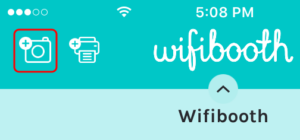
Next, open Wifibooth and touch the camera icon at the top-left of the start screen:

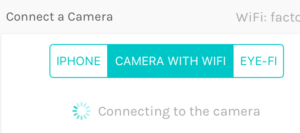
In the camera popup, double-check that the wifi is connected to where you expect it to be. Then, touch the “Camera with Wifi” option:

Wifibooth will look for cameras continuously while the “Camera with Wifi” option is selected. Please note that you might need to complete the pairing on the camera, ie. your camera may ask you if Wifibooth should be allowed to connect.

Nikon camera users: sometimes it can take longer (1-2 minutes) than expected for the initial connection to some Nikon cameras, notably the Nikon D750.

If you still have trouble connecting, please follow these steps: Go to Settings App -> Wifibooth, turn on the setting “Slow camera”. Restart Wifibooth (if it is running, kill it), then try to connect Wifibooth again. This is necessary for some cameras, notably Fuji cameras such as the Fuji X-T30.

If you see an error message from Wifibooth, such as the session being rejected by the camera, just wait a minute — Wifibooth will automatically try again. If you experience issues, switch the camera back to the device camera, then back to “Camera with Wifi” again.

Once connected, you can use the small camera button in the camera popup to take a test photo. Test photos are not saved.

If your camera gets disconnected, ie. because you have to swap the battery, Wifibooth should automatically reconnect.

Tim Carr

Try Wifibooth for free!

Get it now

Please note: The BluePrint app was renamed to SoloLink in August of 2019

SoloLink is a free app designed to work with Wifibooth. You can get it here: http://itunes.apple.com/app/id1127641254

Prefer to watch a video instead of reading? Use the Related Video link above. Note that the video refers to the older BluePrint app, which was renamed SoloLink.

Overview

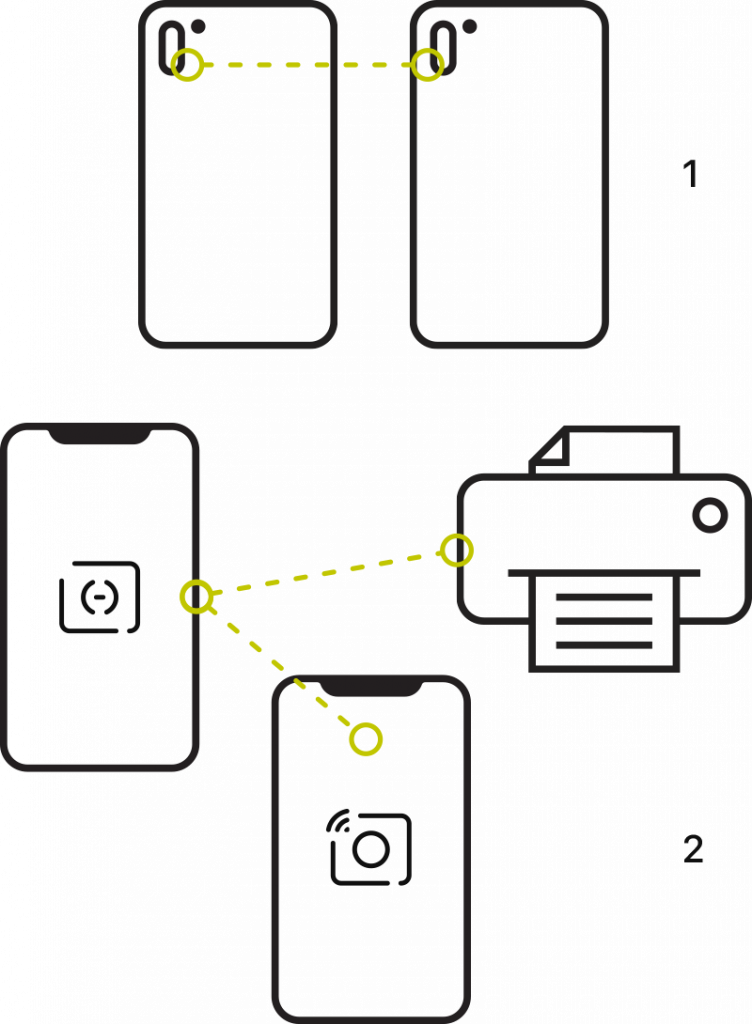
To use SoloLink you need two iOS devices: one with Wifibooth or SoloLink (2a or 2b), and one with SoloLink (1). The most common configuration is Wifibooth on an iPad (2a) and SoloLink on an iPhone (1).

With SoloLink you either share the camera to the other device (1), or, you share a printer and internet access (2).

Which?

If you want to connect Wifibooth to a remote iPhone’s camera with SoloLink (1), keep reading.
If you want to use SoloLink to share a printer or internet access to Wifibooth (2), please see this article instead.

Why?

SoloLink sharing an iPhone camera to Wifibooth on an iPad

A rear-facing iPhone camera is much higher quality than any iPad camera. For this reason alone, using the iPhone camera remotely from the iPad makes sense. But if you have an iPhone with dual cameras (iPhone 8+ or newer), you can also use SoloLink to create effects like green screen (aka magic screen), where the background is replaced even without having a professional/green backdrop behind the guests.

Requirements

  • iOS 12 or newer on both your iPad & iPhone
  • SoloLink installed on your iPhone. It’s free, no sign-up required. App store link: http://itunes.apple.com/app/id1127641254
  • Keep both apps, SoloLink and Wifibooth, updated to the newest versions available on the App Store

To connect your iPhone & iPad:

  1. First, either connect both devices to the same wifi network, or have the iPad connect to your iPhone’s personal hotspot (this will also mean the iPad has internet access, which is necessary for live emails / uploads). Your iPad & iPhone will also connect to each other if wifi is on and both devices are not connected to any network.
  2. On your iPad, in Wifibooth, open the camera popup (near the top-left of the app), and select “Remote iPhone”
  3. On your iPhone, open SoloLink and touch the button to share the camera
  4. Your iPad will find the iPhone and attempt to connect. Your iPhone will ask you for permission for the iPad to connect: grant it with “Always Allow”

That’s it!

On your iPhone, SoloLink offers you the following features:

  • Green Screen effect (replaces the background with a different background). Note that this is only supported on dual-camera devices at least as new as the iPhone 8 Plus, ie. iPhone 8 Plus, iPhone X, iPhone XS, iPhone XS Max or newer. To activate this feature, hit the “Select…” button to choose a new background image. Note: the green-screen effect will only be applied when a person’s face is detected in the frame, and the lighting is good
  • Video resolution: choose the resolution of the live-view feed being sent to your other device. This has no effect on the photos taken. If you experience issues with the live-view / video feed looking blocky or breaking up, then lower the resolution to 480.
  • Flash: choose whether the iPhone flash will fire when a photo is taken
  • Exposure controls: you can lock or unlock the exposure (so that the camera doesn’t change its brightness), and also apply an exposure compensation to make it brighter or darker
  • Save photos to camera roll: by default, all photos taken will be saved to the camera roll on your iPhone. If you don’t want this, set it to “No”.

To conserve your iPhone’s battery, SoloLink will detect when it hasn’t taken a photo in a while, and reduce the frame-rate of the live-video it is sending. As soon as another photo is asked to be taken, or you interact with Wifibooth’s camera controls on the other end, the frame-rate will be reset to its normal rate.

Tim Carr

Try Wifibooth for free!

Get it now

Wifibooth has lots of settings to control how photos, collages and GIFs are uploaded to social media. First, let’s discuss how the settings work.

Social Media Settings

Wifibooth supports automatic uploads of both collages and individual photos to Dropbox, Google Drive, and Google Photos.  Automatic here means that the user does not have to choose that this happens. Here’s when the uploads occur:

  • Collages – uploaded when an action is taken upon a collage (from the collage screen). An action is any user-selected action on the collage, such as email, SMS/text, print, etc. Collages are also uploaded if there are no actions are available (for example, because none have been configured) and the user hits the Done button. Finally, if AutoPilot is enabled, then collages are uploaded.
  • Individual photos (aka All photos), includes GIFs – these are uploaded when the photo is received. In other words, when the photo is visible in Wifibooth, then it is already uploaded (or queued for uploading)

How to Configure Wifibooth as a Social Media Booth

If you don’t want to print — you just want single photos uploaded — then use this combination of settings:

  1. If you are not printing, then in the Printer popover make sure the top switch is turned off
  2. In Event Settings, go to the page(s) of the social media settings that you want to enable. First, make sure you are signed in. Then, make sure upload collages is turned on. No need to turn on uploading for All photos, leave that off for now!
  3. In Event Settings, go to the Taking Photos page. Change the number of photos to take to 1. Also, turn on AutoPilot to Full, and in the popup, select Yes to avoid user interaction.

Now when you take photo(s), the collage will just be a single photo, and will be automatically uploaded.

If you want to have collages of more than 1 photo, then change the number of photos to take accordingly, and also turn on uploading of All photos for the social media service(s) you’re using. This will also mean that GIFs get uploaded.

As always, think hard about whether it is safe to upload photos automatically to social media: this makes the photos public immediately. The last thing you want is a drunk guest’s very inappropriate photo published publicly! If you think this is a risk, then only enable uploading of collages, and turn off AutoPilot. This means that only collages that your guests create will be uploaded.

Tim Carr

Try Wifibooth for free!

Get it now